Google Workspace and Gmail
Connect AgentFront in the Google Admin console. Staff then link their own mailbox.
Step-by-step setup
Prefer to watch first? This video shows the seven steps below in the Google Admin console.
Sign in to the Google Admin console
Go to admin.google.com and sign in with a super administrator account.
Open API controls
In the left navigation:
SecurityAccess and data controlAPI controls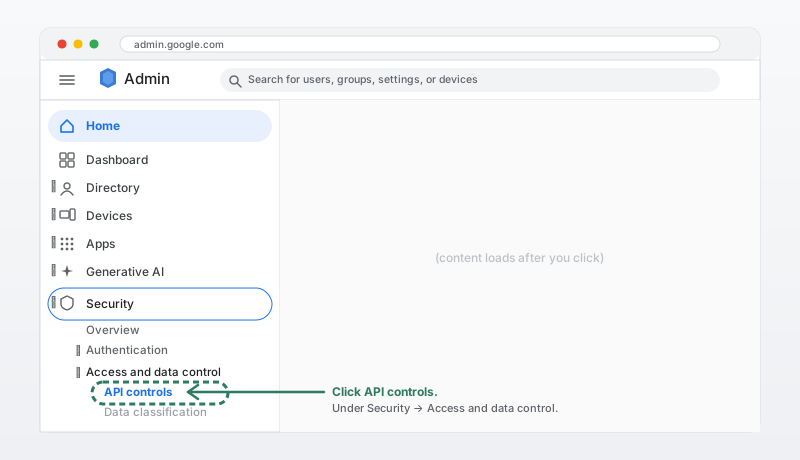 (opens the full-size image in a new tab)
Illustration Open app access control
On the API controls page, in the App access control card, click Manage app access. Some consoles label the link Manage third-party app access.
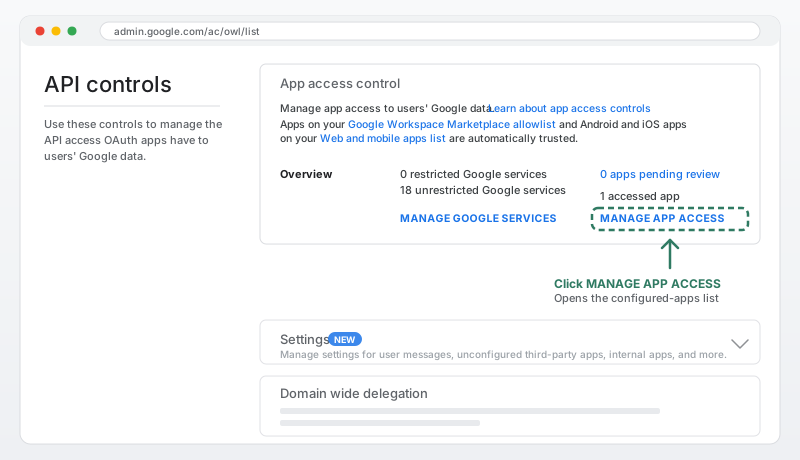 (opens the full-size image in a new tab)
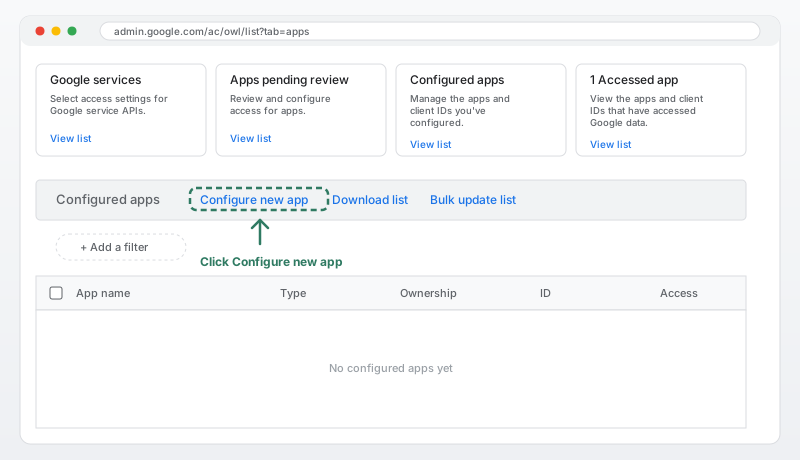
Illustration Choose Configure new app
On the Configured apps tab, click Configure new app, above the table of apps.
 (opens the full-size image in a new tab)
Illustration Search for AgentFront and select it
Search for
agentfront. Choose the result named AgentFront with the kookaburra logo, highlighted below.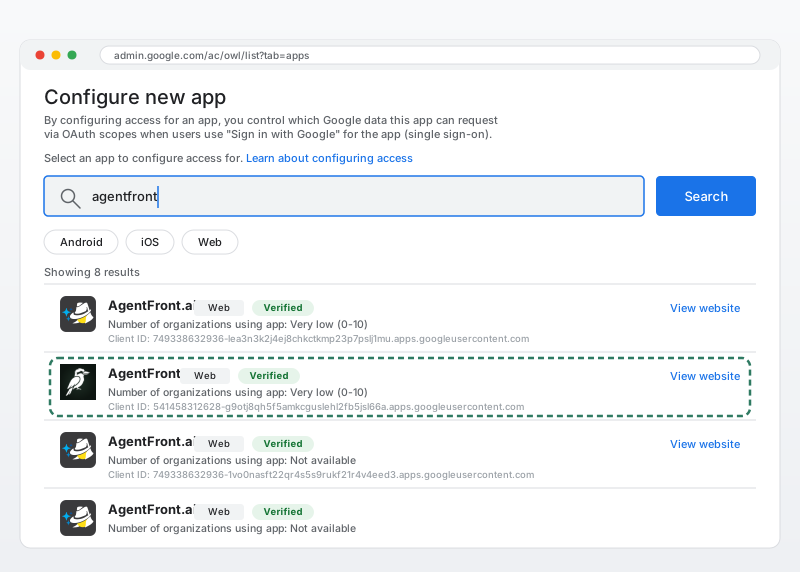 (opens the full-size image in a new tab)
IllustrationChoose AgentFront, with the kookaburra logo. Choose who it applies to
On the Scope screen, leave All in <your organisation> (all users) selected and continue. Change it only if you use organisational units and want to limit it to some of your staff.
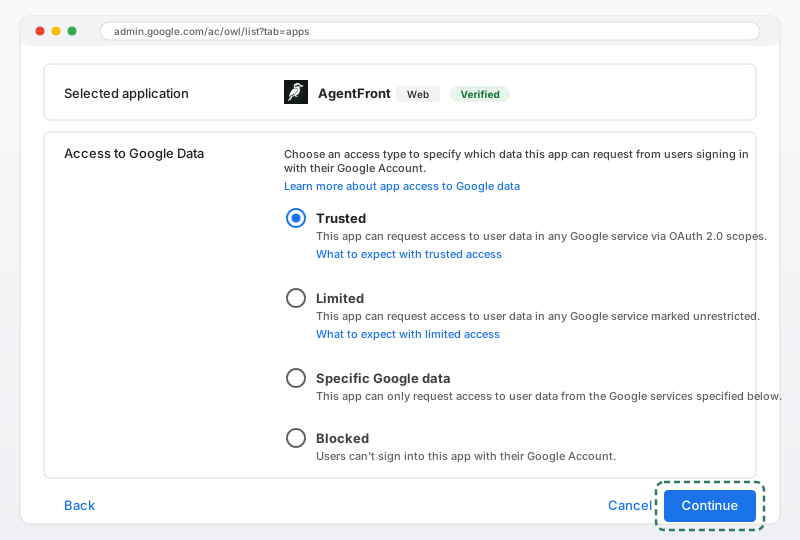
Set access to Trusted
On the Access to Google Data screen, choose Trusted, then continue and confirm. Limited and Specific Google data hold back access that staff need to connect.
 (opens the full-size image in a new tab)
Illustration
(Optional) Confirm it worked
AgentFront appears in the Configured apps list with access Trusted. Google can take a few minutes to apply the setting across your domain.
Done
AgentFront is now approved for your organisation.
Each staff member then links their own mailbox by signing in to AgentFront with their Gmail account.
More detail
Optional reading: what AgentFront asks for, why, and how to withdraw access. Nothing below is needed to finish setup.
What you're connecting
AgentFront connects to your staff's Gmail mailboxes and Google Calendars using OAuth, the same mechanism as any "Sign in with Google" application. The Admin console setting lets your users grant it access, and each staff member still signs in and consents for their own account.
Rental and sales enquiries arrive as email. With that access, AgentFront:
- Reads new mail, so an enquiry that lands overnight is answered in the morning.
- Writes the reply for a staff member to review, and holds it in AgentFront until they approve it.
- Sends the approved reply from the staff member's own Gmail address.
- Labels and files mail: applying an
AgentFrontlabel, marking a message read, moving a handled enquiry out of the inbox. - Reads and writes the user's calendar, so it can quote real availability and book an appraisal or inspection.
Access requested
These are the OAuth scopes each staff member grants when they link their own mailbox. Your Admin console setting is what permits them to do so.
| Capability | Permission | Access | Why AgentFront needs it | |
|---|---|---|---|---|
| CapabilityRead, label and file mail | Permissionhttps:/ | AccessRead and modify | Why AgentFront needs itReads incoming enquiries and their attachments, applies the AgentFront label, marks messages read, and moves handled enquiries out of the inbox. Also reads the user’s own Gmail signature so replies are signed correctly. Does not permit sending. | |
| CapabilitySend approved replies | Permissionhttps:/ | AccessSend | Why AgentFront needs itSends the reply inside the existing thread, from the staff member’s own Gmail address, once it has been approved. | |
| CapabilityRead and write the calendar | Permissionhttps:/ | AccessRead and write | Why AgentFront needs itReads the user’s own primary calendar so open homes and appointments are quoted accurately, and creates or updates an appraisal or inspection booking when one is agreed. | |
| CapabilitySign in | Permissionopenid, email, profile | AccessRead | Why AgentFront needs itStandard OpenID Connect sign-in. Identifies the account and confirms it is the same person who is signed in to AgentFront. |
What it will not touch
In Google Workspace
- Does not receive your password, or any user’s password. Consent happens entirely on Google’s own pages.
- Acts only as the individual who signed in. Every Google API call uses that person’s own OAuth token.
- Needs no Marketplace install. The setup above allows AgentFront in App access control, and nothing is installed into your domain.
- Does not use the Admin SDK Directory API. It cannot enumerate your users, groups or organisational units.
- Does not access Google Drive, Docs, Contacts/People or Tasks.
- Does not delete or trash Gmail messages.
- Does not read Spam or Trash.
- Reads only each connected user’s own primary calendar, not secondary or shared calendars.
- Does not read the mailbox of anyone who has not linked their own account.
Revoke access
Access is withdrawn in the Google Admin console, where you allowed AgentFront. The Google card inside AgentFront is a read-only status display.
Find AgentFront in the configured apps list
SecurityAccess and data controlAPI controlsManage app accessOpen the Configured apps tab and find AgentFront.
Block it, or remove it
Change its access to Blocked, or remove the configured app entirely.
After access is withdrawn:
- AgentFront stops reading and sending, and the affected staff are sent to a screen asking them to reconnect.
- Mail and calendar entries stay put. Labels already applied, messages already moved, replies already sent and calendar events already created remain exactly as they are.
Individual users can also revoke AgentFront from their own Google Account, under Security → Your connections to third-party apps & services. That affects only that person.
Common questions
Does this give AgentFront access to everyone's Gmail? No. It permits AgentFront to ask. Access to a mailbox exists only after that person signs in and consents for their own account.
Can one person link someone else's mailbox? No. AgentFront checks that the Google account being linked belongs to the signed-in user.
Can it send email without anyone looking at it? No. Replies are prepared for a member of your team to review and send from the AgentFront queue.
Do I need to allow anything for Google Cloud, Pub/Sub or a service account? No. AgentFront uses Google's push notifications to pick up new mail promptly, and all of that infrastructure lives in AgentFront's own Google Cloud project. Nothing is created in yours.