realestate.com.au (REA Ignite)
AgentFront is an REA partner
Add AgentFront as an integration partner in REA Ignite.
Step-by-step setup
Prefer to watch first? This video shows the six steps below in REA Ignite.
Sign in to Ignite
Go to agent.realestate.com.au and sign in with your Ignite administrator account.
Open Data and integrations
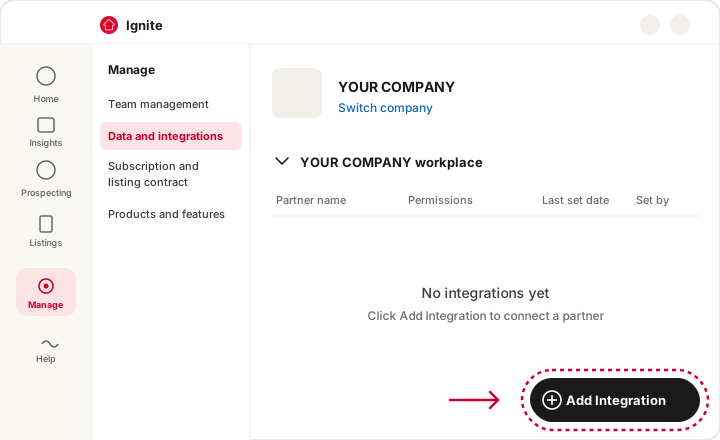
In the left sidebar click Manage, then Data and integrations.
 (opens the full-size image in a new tab)
IllustrationThe Data and integrations page in Ignite. Expand your workplace and choose Add Integration
Expand the workplace you want to connect, then click Add Integration at the bottom right.
Search for AgentFront and select it
Type
AgentFrontin the partner search and select the result named AgentFront with the kookaburra logo. Then click Select integration data.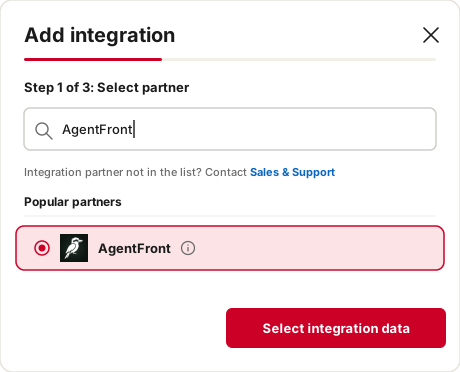 (opens the full-size image in a new tab)
IllustrationAdd integration, step 1 of 3: select partner. Select the integration data
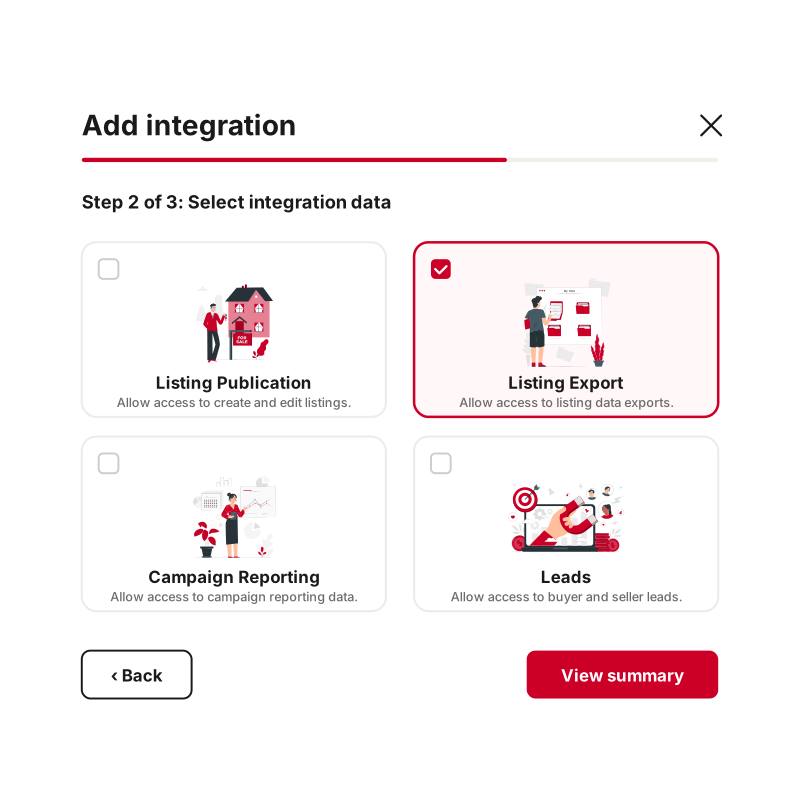
Tick Listing Export, then click View summary.
 (opens the full-size image in a new tab)
IllustrationAdd integration, step 2 of 3: select integration data. Confirm and accept the terms
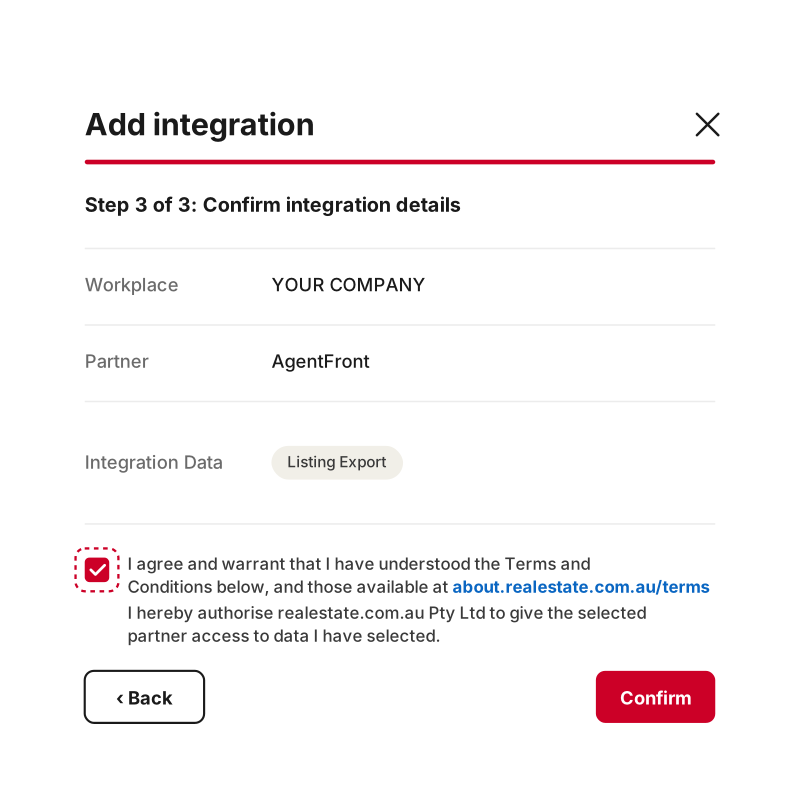
Check the details, tick realestate.com.au's terms checkbox and click Confirm.
 (opens the full-size image in a new tab)
IllustrationAdd integration, step 3 of 3: confirm integration details.
(Optional) Confirm it worked
AgentFront appears as a row under your workplace on ManageData and integrations, with the permissions you granted.
Done
AgentFront can now read your agency's listings from realestate.com.au.
Your team then confirms the connection in AgentFront, and listings start syncing within a few minutes.
More detail
Optional reading: what AgentFront asks for, why, and how to withdraw access. Nothing below is needed to finish setup.
What you're connecting
AgentFront is a registered realestate.com.au integration partner. Once you add it in Ignite, it has read-only access to your listings through REA's API. It uses its own partner credentials, which have nothing to do with your agency's Ignite login.
Every property fact the assistant quotes to a tenant or buyer comes from what the agency has already published on realestate.com.au. It also knows whether a listing is current, leased or sold, so it does not offer a property that has gone.
Access requested
Ignite offers four data types when you add an integration partner. This is what each one means for AgentFront.
| Capability | Permission | Access | Why AgentFront needs it | Required or optional |
|---|---|---|---|---|
| CapabilityListing data | PermissionListing Export | AccessRead | Why AgentFront needs itThe data AgentFront reads. Every listing fact the assistant uses comes from here: address, price or rent, bed/bath/car, features, images, inspection times, status and listing agent. | Required or optionalRequired |
| CapabilityCampaign performance | PermissionCampaign Reporting | AccessRead | Why AgentFront needs itOptional. The assistant does not need it to answer enquiries. | Required or optionalOptional |
| CapabilityPortal enquiries | PermissionLeads | AccessRead | Why AgentFront needs itOptional. Portal enquiries already reach AgentFront as email through the connected mailbox. | Required or optionalOptional |
| CapabilityCreate and edit listings | PermissionListing Publication | AccessWrite | Why AgentFront needs itNot requested. AgentFront does not write to realestate.com.au. | Required or optionalLeave unticked |
What it will not touch
What AgentFront cannot do on realestate.com.au
- Cannot create, edit, publish, withdraw or relist a property.
- Cannot change a price, a description, a photo or an inspection time.
- Cannot respond to a lead or change an enquiry through REA.
- Cannot change a campaign, a product or a subscription.
- Reads only the residential and rental listings for the agency you connect.
- Does not receive a realestate.com.au password. You never enter one.
Revoke access
Access is withdrawn in REA Ignite, where you granted it. The realestate.com.au card inside AgentFront is a read-only status display.
Open the integration
IgniteManageData and integrationsFind the AgentFront row.
Edit or remove it
Remove the integration to withdraw access completely, or Edit it and untick individual data types to narrow what AgentFront can read.
After access is withdrawn:
- Removing the integration stops listing syncing, usually within about five minutes.
- Unticking Listing Export stops listing syncing and leaves the connection in place, so re-granting the permission resumes syncing on its own.
- Nothing is deleted at realestate.com.au. AgentFront does not write there.
- Listing information already in AgentFront stays but stops updating, so restore the connection promptly if you only meant to pause it.
Common questions
Can AgentFront change our listings? No. The integration is read-only.
How does AgentFront find our agency? Someone at the agency signs in to AgentFront with their work email on the agency's own domain, as an admin of the AgentFront workspace, and AgentFront matches your agency automatically. If the agency's staff are asked for your Agency ID instead, it is shown in Ignite under ManageData and integrations.
Which listings does it read? Residential and rental listings for the connected agency, in the statuses current, leased, off-market and sold.
Does it download our photos? No. It stores the image URL that realestate.com.au publishes, not a copy of the image.
How fresh is the data? AgentFront checks for changes every five minutes, and does a full reconciliation once a day.
Do enquiries from realestate.com.au come through this connection? No. Portal enquiries arrive as email in the agent's own mailbox, which is why the email connection is the one that matters for enquiries.
Does the assistant quote anything we have marked private? No. Values that realestate.com.au marks as not-for-display are removed before the assistant sees anything an enquirer might read.