Microsoft 365 and Outlook
AgentFront is a verified Microsoft publisher
Connect AgentFront to Outlook from Microsoft's consent page. Staff then link their own mailbox.
Step-by-step setup
Prefer to watch first? This video shows the three steps below.
Open the Microsoft 365 setup page
Go to the Microsoft 365 setup page, enter your agency's email domain and select Connect AgentFront. If you were sent a direct link instead, open that.
Sign in and review the permissions
Microsoft shows its own consent page listing the permissions, which are set out in full under Access requested below. The publisher line reads PARALLEL INTERNATIONAL PTY LTD, the company behind AgentFront, with Microsoft's verified-publisher badge.
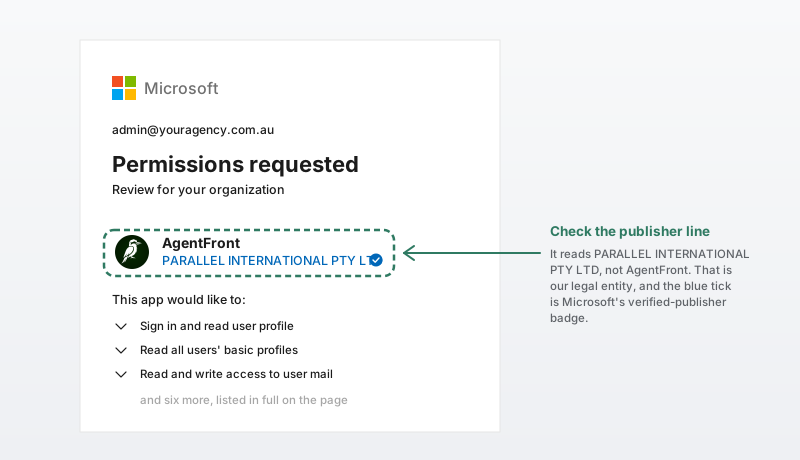 (opens the full-size image in a new tab)
IllustrationThe app name and publisher line. Accept
Accepting approves AgentFront for your organisation. Microsoft then returns you to a short AgentFront page confirming the approval.
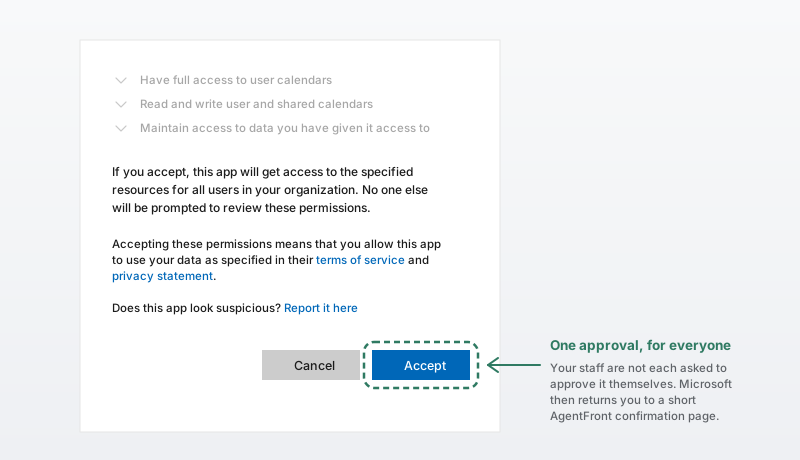 (opens the full-size image in a new tab)
IllustrationAccept sits at the foot of the consent page.
(Optional) Confirm it worked
AgentFront appears in Entra IDEnterprise applications, with the permissions you granted under Security → Permissions.
Done
AgentFront is now approved for your organisation.
Each staff member then links their own mailbox by signing in to AgentFront with their Microsoft account.
More detail
What AgentFront asks for, why, and how to withdraw access. Nothing below is needed to finish setup.
What you're connecting
AgentFront connects to your staff's Outlook mailboxes and calendars through the Microsoft Graph API, using delegated permissions. That is the same kind of access any Microsoft 365 app gets when a user signs in to it.
Rental and sales enquiries arrive as email. With that access, AgentFront:
- Reads new mail, so an enquiry that lands overnight is answered in the morning.
- Writes a draft reply into the same thread, in the staff member's own mailbox.
- Sends the approved reply from the staff member's own address.
- Categorises and files mail: adding a category, marking a message read, moving a handled enquiry out of the inbox.
- Reads and writes calendars, so it can quote real availability and book an appraisal.
AgentFront reads someone's mailbox only after that person has signed in to AgentFront with their own Microsoft account. It requests no application permissions, which are the kind that would work without a signed-in user.
Access requested
These are the permissions Microsoft lists on the approval page, with the Graph permission name beside each. They are all delegated permissions: AgentFront acts as a signed-in user, for users who have signed in.
| Capability | Permission | Access | Why AgentFront needs it | |
|---|---|---|---|---|
| CapabilitySign in and read user profile | PermissionUser. | AccessRead | Why AgentFront needs itIdentifies which mailbox belongs to which team member, and confirms the account that signed in is the one AgentFront is linking. | |
| CapabilityRead and write access to user mail | PermissionMail. | AccessRead and write | Why AgentFront needs itReads incoming enquiries, creates the draft reply in the same thread, and updates that draft. Also marks a message read, applies a category, and moves a handled enquiry out of the inbox. | |
| CapabilitySend mail as a user | PermissionMail. | AccessWrite | Why AgentFront needs itSends the approved reply from the staff member’s own address, so the recipient hears back from their agent. | |
| CapabilityFull access to user calendars | PermissionCalendars. | AccessRead and write | Why AgentFront needs itReads availability so open homes and appointments are quoted correctly, and creates or updates an appraisal booking when one is agreed. | |
| CapabilityRead all users’ basic profiles | PermissionUser. | AccessRead | Why AgentFront needs itMatches a signed-in staff member to their own account in AgentFront. | |
| CapabilityRead and write user and shared mail | PermissionMail. | AccessRead and write | Why AgentFront needs itThe same mail handling for agencies that run enquiries through a shared or delegated mailbox, such as rentals@ or info@. | |
| CapabilitySend mail on behalf of others | PermissionMail. | AccessWrite | Why AgentFront needs itSends the approved reply from a shared or delegated mailbox, so it comes from the address the enquiry was sent to. | |
| CapabilityRead and write user and shared calendars | PermissionCalendars. | AccessRead and write | Why AgentFront needs itQuotes availability and books appointments on a shared calendar, for agencies that keep open homes and inspections on one. |
Microsoft may also show the standard sign-in permissions openid, profile, email and
offline_access. They carry no access to content: the first three are OpenID Connect identity
claims, and offline_access is what keeps the connection working without asking staff to sign
in again each day.
What it will not touch
In Microsoft 365
- Does not receive your password, or any user’s password. Sign-in and approval happen entirely on Microsoft’s own pages.
- Does not request any SharePoint, OneDrive, Files, Sites, Teams, Chat, Directory, Group, Contacts or People permission.
- Does not request MailboxSettings, so it cannot read or change a mailbox’s own configuration.
- Does not delete mail that anyone sent or received.
- Does not delete calendar events. When a booking is called off it is cancelled through Microsoft’s own cancel operation, with a reason.
- Does not read the mailbox of anyone who has not signed in to AgentFront with their own Microsoft account.
- Does not read other users’ directory profiles, enumerate your users, or read your groups or org structure.
- Does not change any Microsoft 365 or Entra ID setting, create an app registration in your tenant, or ask you to create a service principal or client secret.
- Does not require an Exchange Online application access policy, per-mailbox grant, or mailbox delegation.
Revoke access
Access is withdrawn in Entra ID, where you granted it. The Microsoft card inside AgentFront is a read-only status display.
Open the enterprise application
In the Microsoft Entra admin centre:
Entra IDEnterprise applicationsAgentFrontRemove the permissions, or the application
Delete the application to remove it entirely, or remove the granted permissions under Security → Permissions to withdraw consent while keeping the record.
After access is withdrawn:
- AgentFront stops reading and writing, and the affected staff are sent to a screen explaining that the organisation's approval was removed.
- Mail and calendar entries stay put. Drafts AgentFront prepared, categories already applied, messages already moved, replies already sent and calendar events already created remain exactly as they are.
To remove one person's access without affecting anyone else, revoke that user's sessions and refresh tokens in Entra ID.
Common questions
Can AgentFront read mail from before we approved? It reads recent mail in the inbox, sent items and archive, so the assistant has the earlier messages in a conversation. It does this only for staff who have linked their own mailbox.
Can it send email without anyone looking at it? No. Replies are prepared for a member of your team to review and send from the AgentFront queue.